
In order to display a Twitter Embedded Timeline feed please do the following:
1) Login to your Twitter account
2) Search for the Twitter feed you want to display
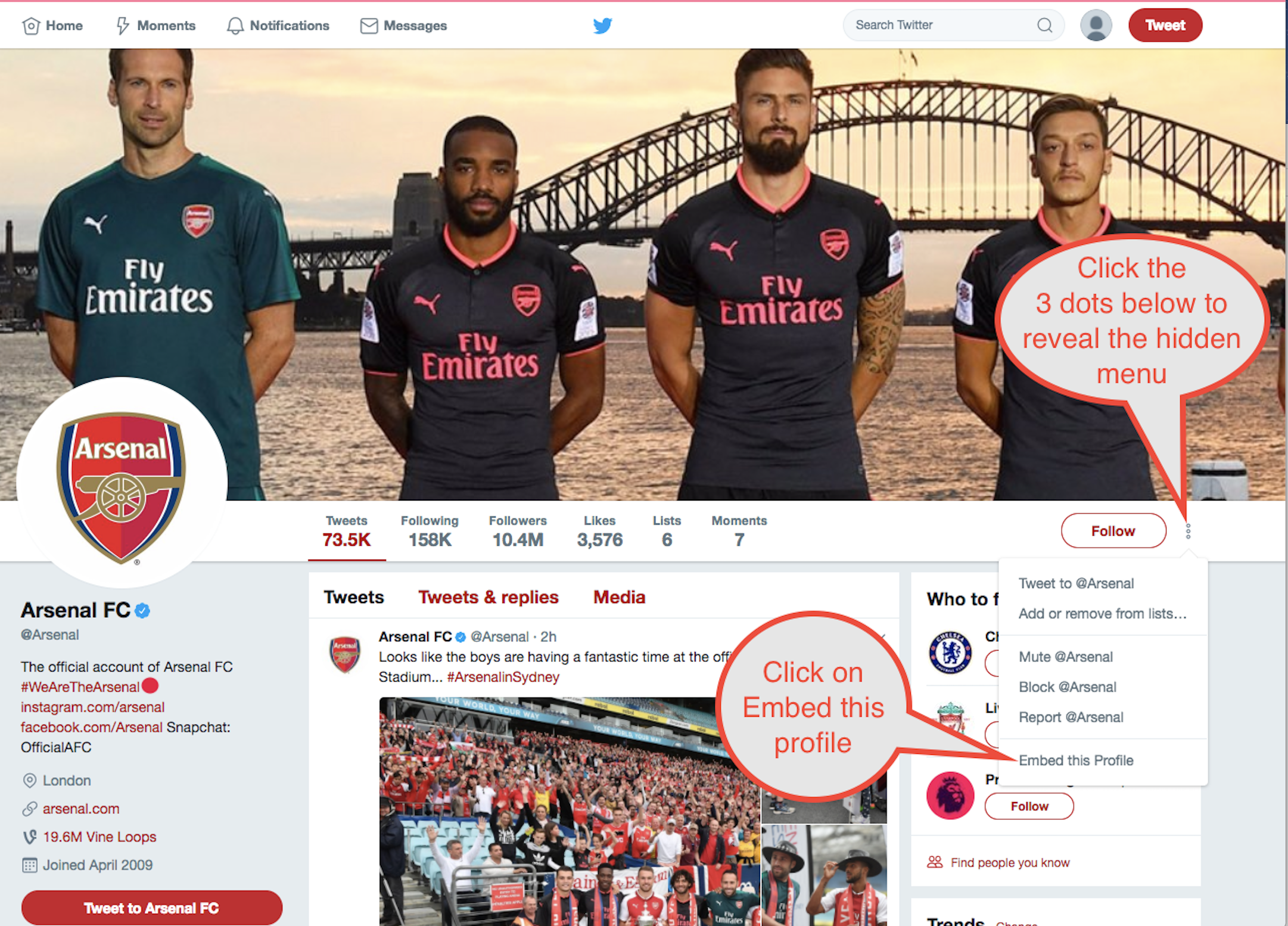
3) Click on the 3 vertical dots to open the hidden menu > click on Embed this profile
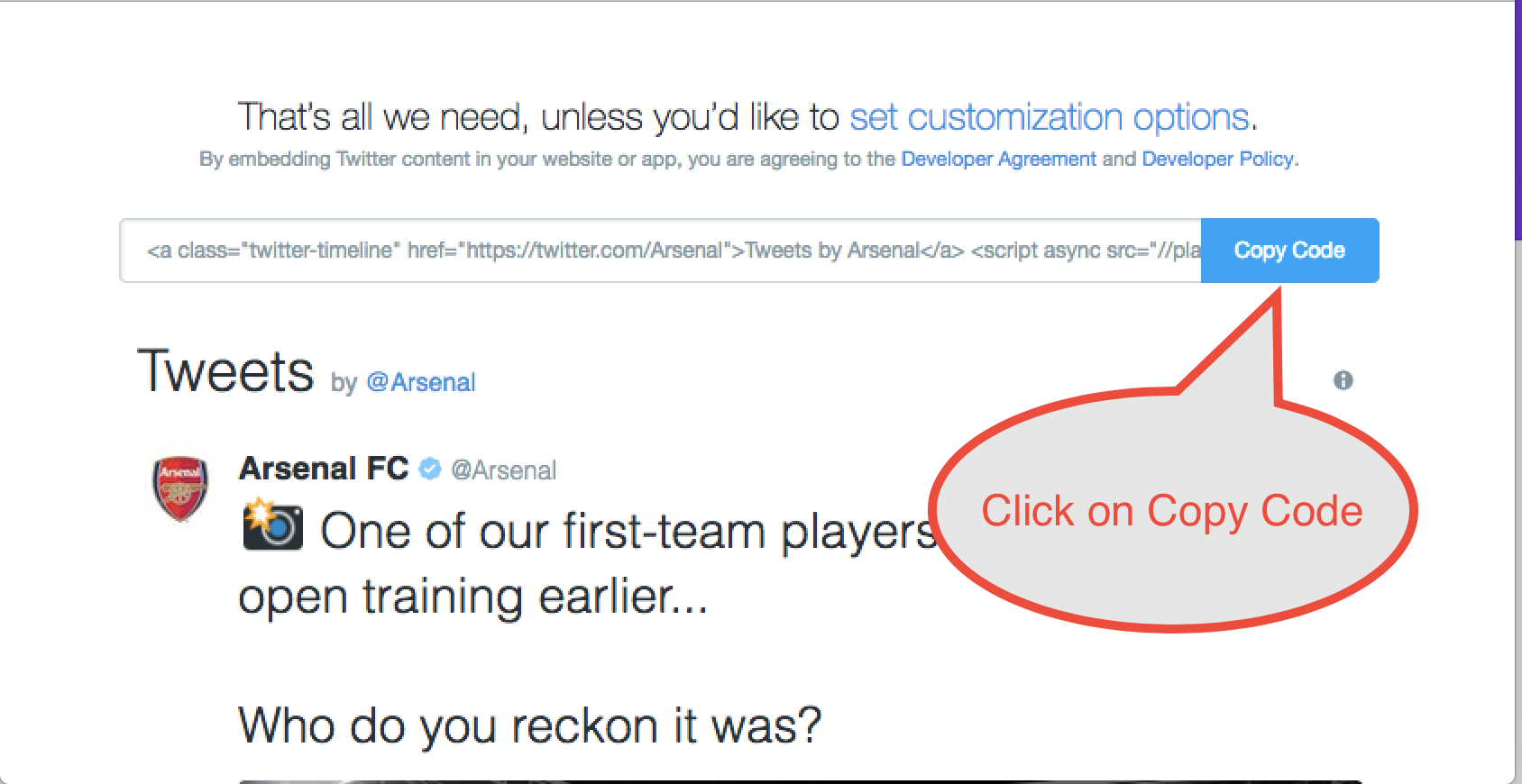
4) Click on Embedded Timeline

5) Click on Copy Code
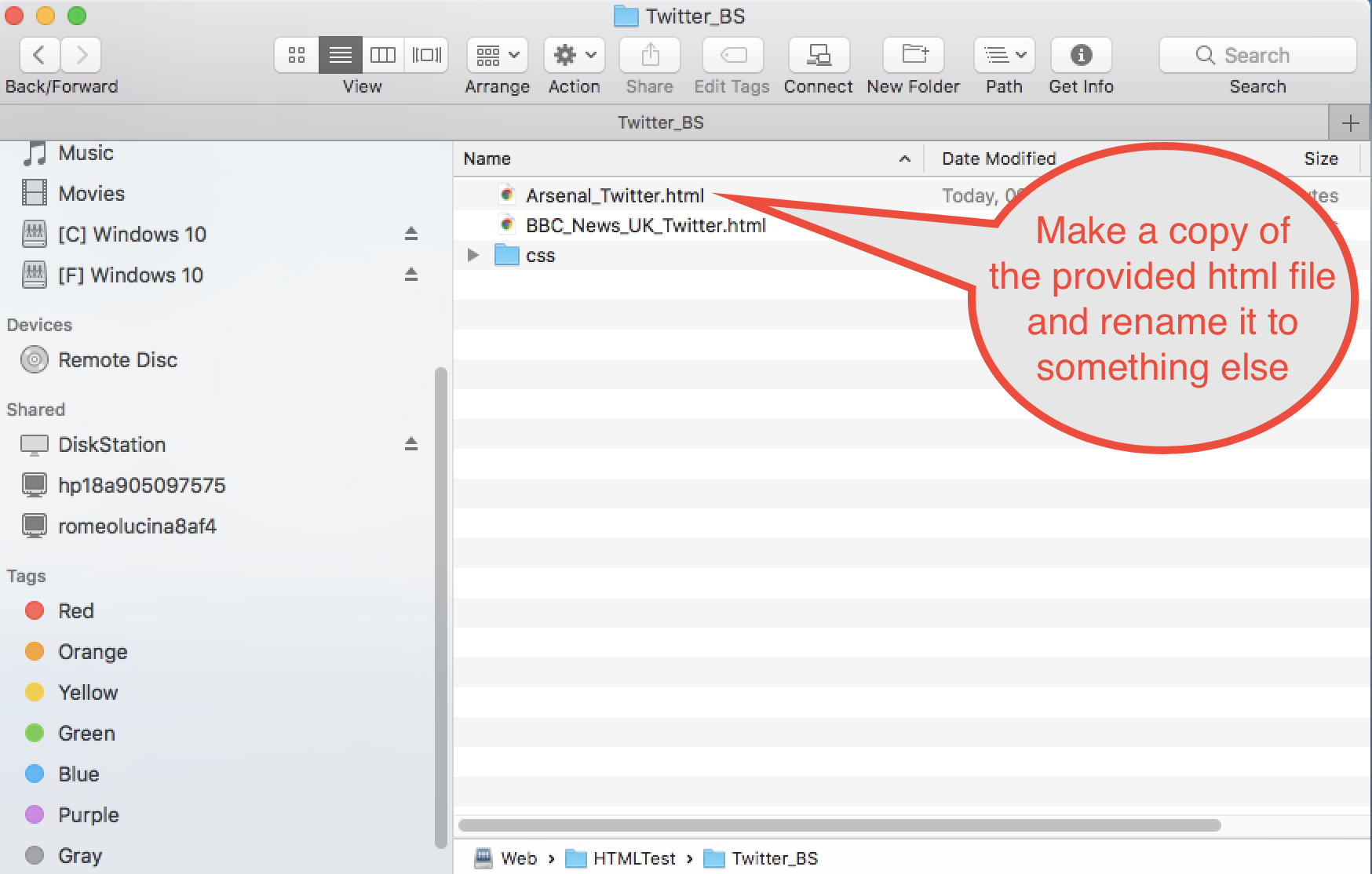
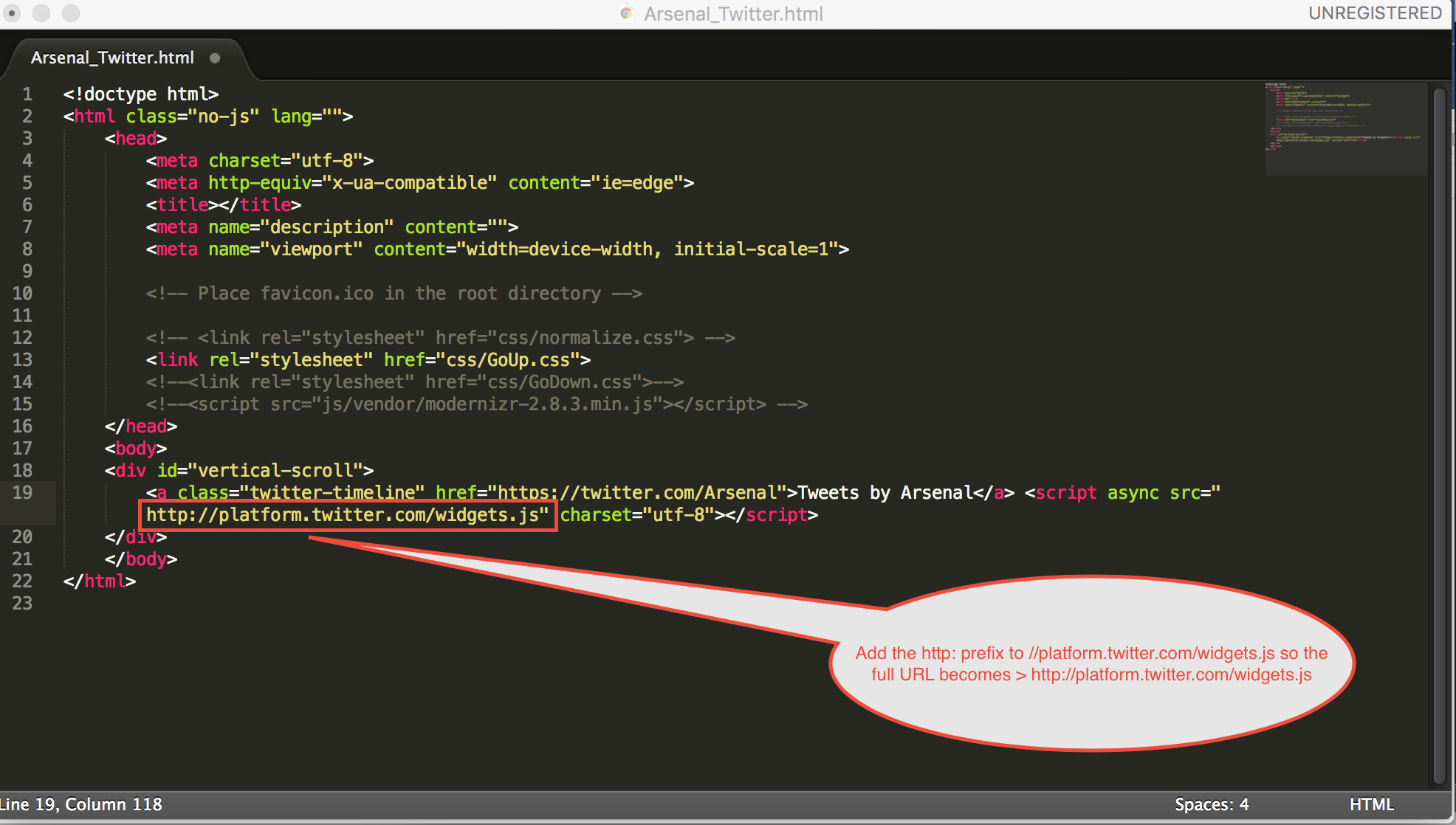
6) Make a copy of the provided HTML file and rename it to something else (like Arsenal_Twitter.html as per the below example)
7) Open the newly renamed HTML file and paste the copied code from Step 5 between <div id="vertical-scroll">...</div>
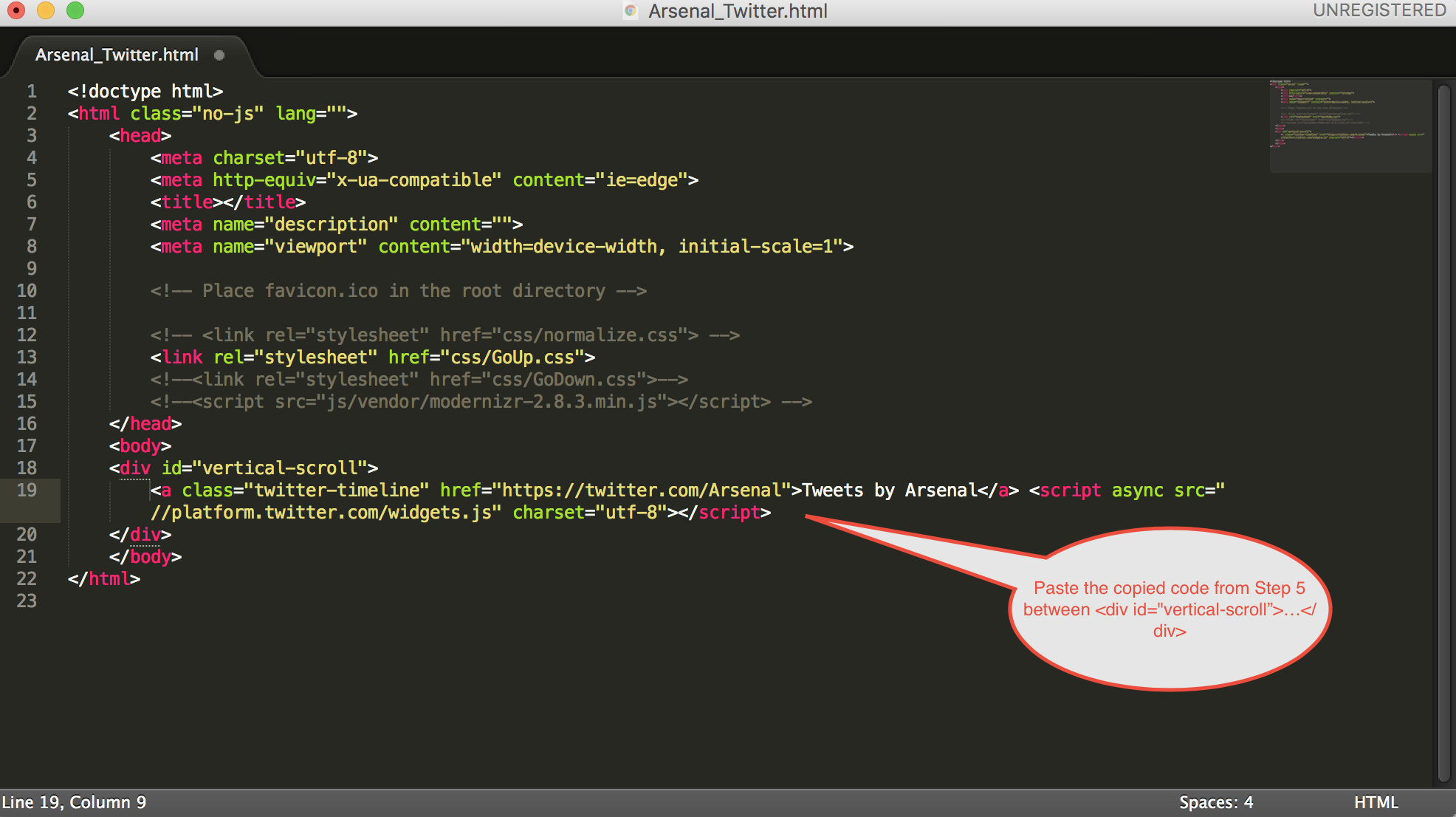
8) Add the http: prefix to //platform.twitter.com/widgets.js so the full URL becomes > http://platform.twitter.com/widgets.js then save your changes.
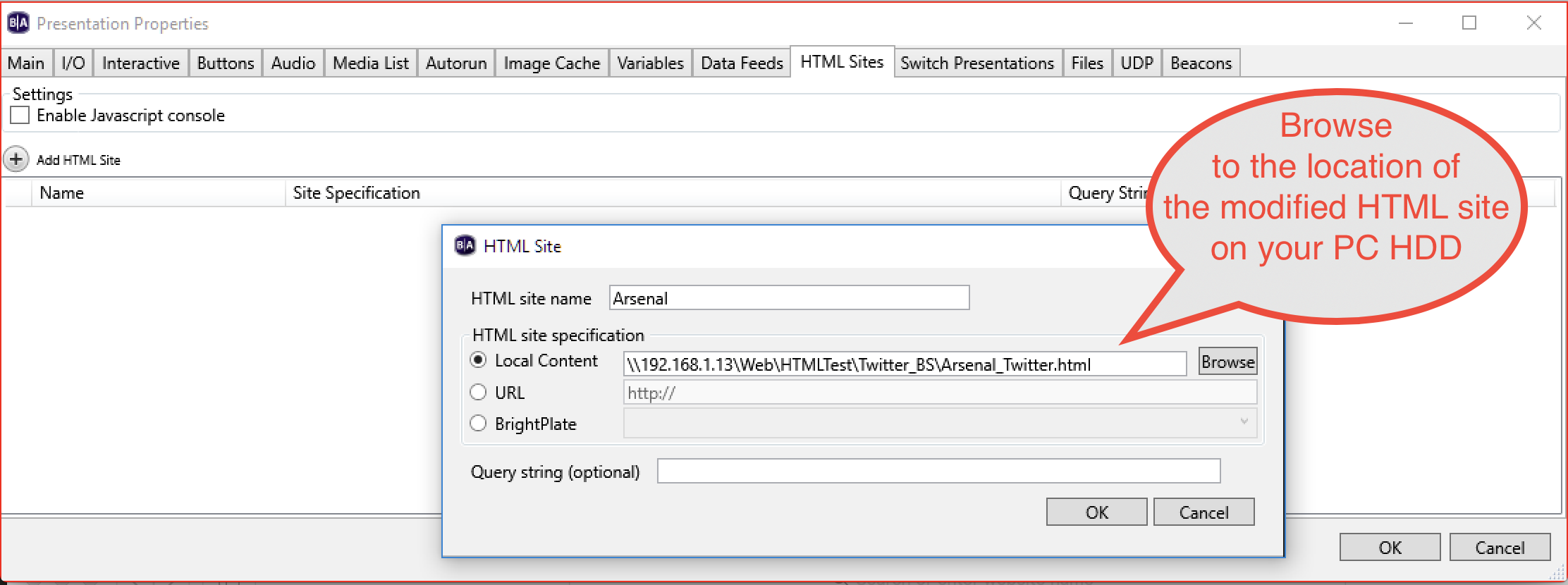
9) Add the HTML site (the newly modified page with the CSS folder) to your BrightAuthor presentation via File > Presentation Properties > HTML Sites > Add HTML site > Browse to the location of the modified HTML file on your PC HDD > Click OK
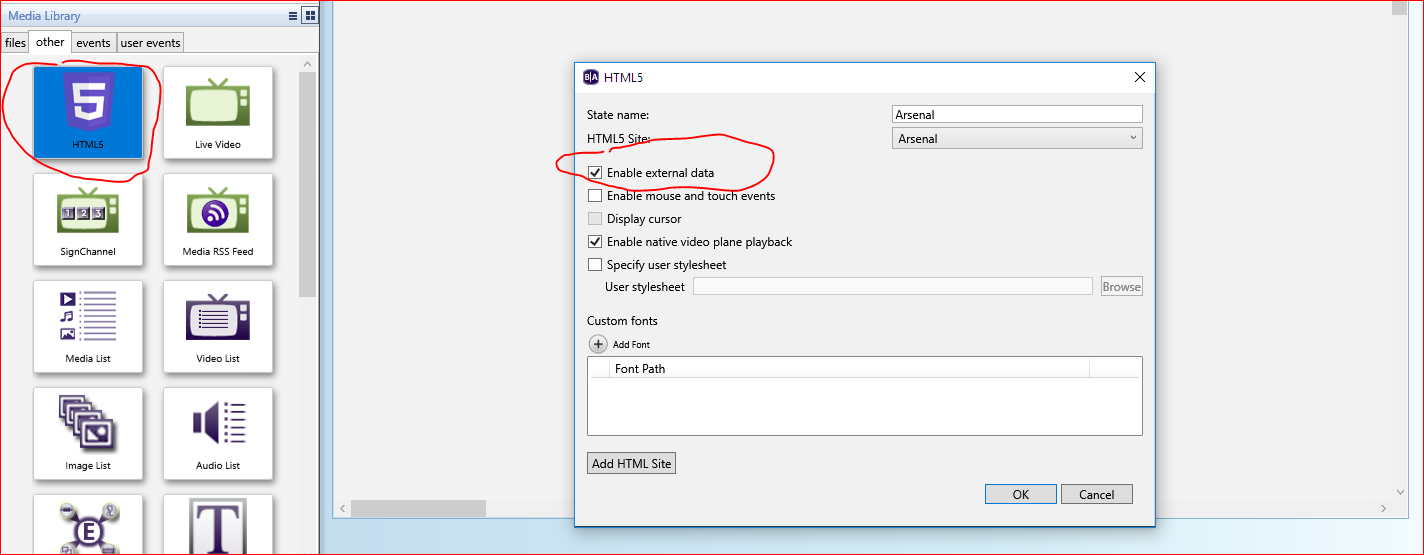
10) Add an HTML state to your BrightAuthor playlist and make sure to enable "Enable External data"
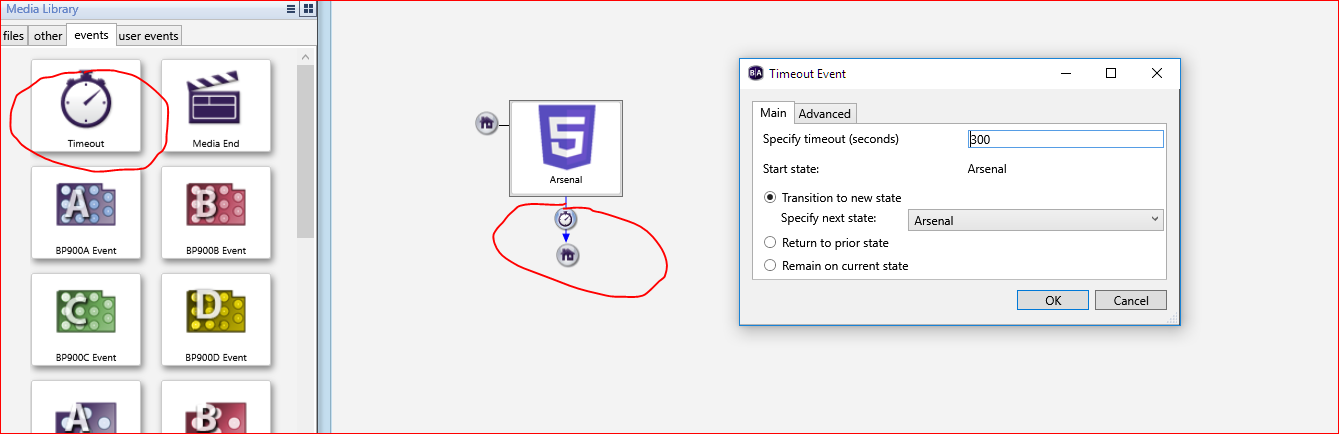
11) Add a timeout transition event to that HTML state in order to refresh that feed at the desired time interval
12) Publique su presentación
En este artículo se adjuntan tanto el HTML/CSS como un ejemplo de demostración de BA.